Getting started
From download to a quiet night.
This guide covers beta.4 Windows portable and Linux testing packages. Windows installer and Mac DMG are pending. Keep the remote handy for your first physical off test.
Public beta 0.1.0-beta.4 · Free during testing. Unsigned Windows x64 portable and Linux x64 packages are available; Windows installer and Mac DMG are pending. Native GUI and hardware sleep/wake testing remain unverified.Expires October 28, 2026 at 08:40:28.369 UTC (2026-10-28T08:40:28.369Z)—30 days after build time, not installation.After expiry, TV control stops; diagnostics and cleanup remain available. A household convenience tool, not a tamper-resistant control.
- 1
Check your TV and computer
Look up your TV on the compatibility page. Samsung Tizen TVs, including The Frame, are integrated. LG, Sony BRAVIA with IP Control, and Vizio are experimental.
Pick a Windows 10/11 x64 or Linux x64 computer that can stay on overnight, signed in, and connected to the same home network as the TV. Native GUI and hardware sleep/wake verification for these packages remain pending.
- 2
Download and install
Get the appropriate beta.4 ZIP from the downloads page and compare its SHA-256 checksum before extracting. Download only from tvnightguard.com. The build is unsigned; Windows may show an unknown-publisher warning. Never disable antivirus or other security protection.
Windows portable: extract the whole ZIP into a fixed folder, then run TV Night Guard Beta/TV Night Guard Beta.exe. Keep every included runtime file together. This is not a standalone Portable.exe. The Windows installer is not available for beta.4.
Linux AppImage: extract the ZIP, open a terminal in the extracted folder, run chmod +x ./*.AppImage, then launch the AppImage. Keep it in a fixed folder. Your distribution may need FUSE support; consult the release README if it will not start.
Debian/Ubuntu amd64: extract the Debian ZIP, open a terminal in the extracted folder, and run sudo apt install ./*.deb. Review the package manager prompt before approving. Launch TV Night Guard from your application menu. Linux pairing requires a working secure keyring.
- 3
Explore the sample home (optional)
Open the preview to look at every screen with demo data. Nothing is sent to any TV in preview mode.
- 4
Pair your TV
Turn the TV on and keep the remote nearby. In Your TVs, add a TV and follow the steps for its platform.
Many TVs show an allow or PIN prompt the first time. Accept it on the TV. Pairing credentials are encrypted on your computer.
- 5
Confirm the off test
The app sends an off command and asks what you saw. Watch the TV, not the screen of your computer.
The screen should go fully dark. For Samsung The Frame, Art Mode should stop too. A TV is only guarded after you confirm this test.
- 6
Set your quiet hours
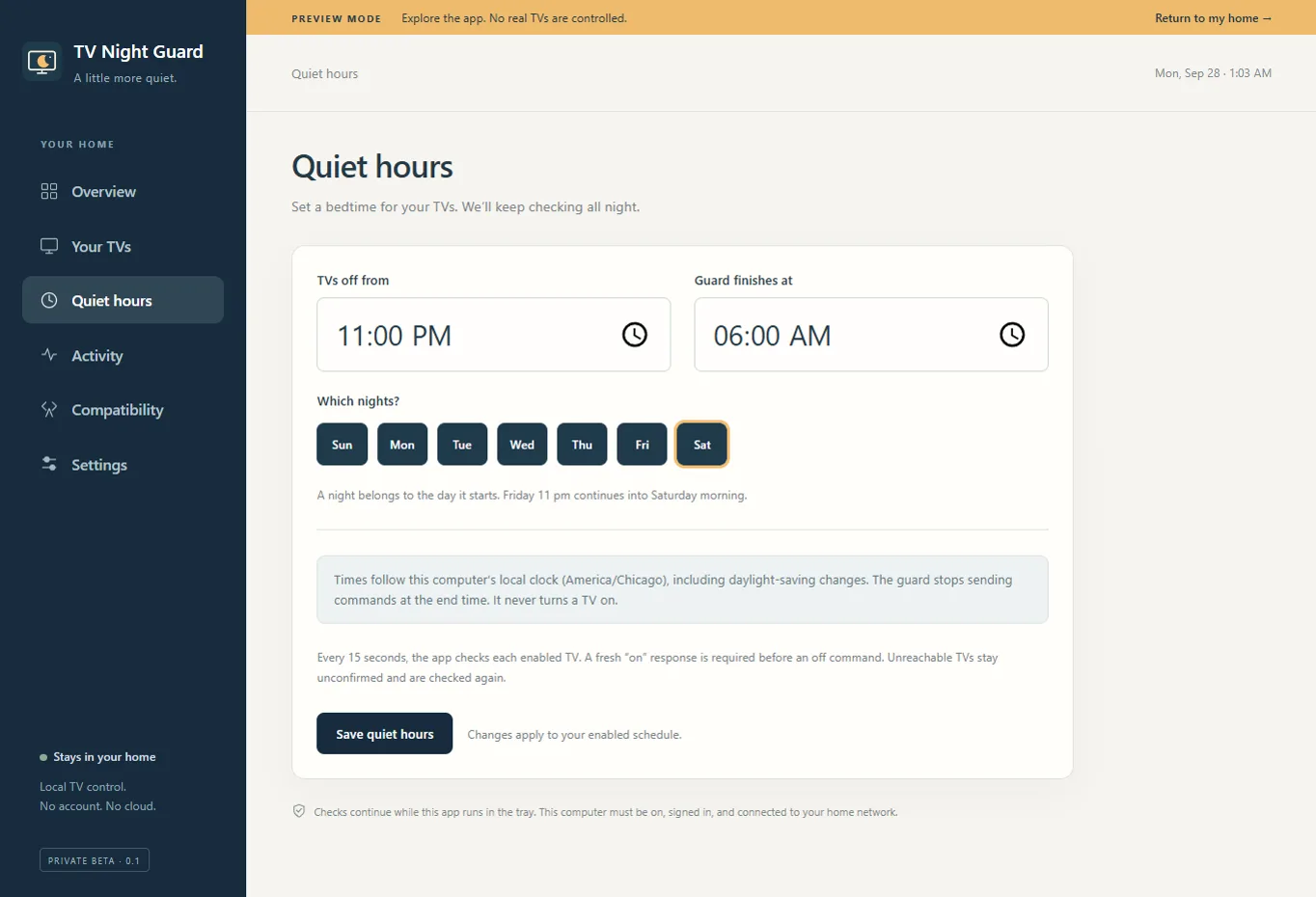
The default is 11 p.m. to 6 a.m. Change the start and end times and choose which nights apply. A night belongs to the day it starts.
Enable the guard. From then on, the app checks enabled TVs about every 15 seconds during quiet hours and stops at the end time.
- 7
Leave the computer ready
In Settings, optionally choose startup at sign-in, preventing normal idle sleep during quiet hours, and requesting wake. Startup and wake tasks are created only after you select and save those options. Linux wake setup needs administrator approval, systemd, and a supported hardware wake clock. Wake depends on hardware and OS settings and is not yet hardware-verified.
Close the window when you are done. The app stays in the system tray. Quitting stops checks.
Good to know
- A closed laptop lid or manual Sleep may still suspend the computer.
- The app cannot start a computer that is powered off.
- Anyone with access to the computer can pause or quit it.
- Unreachable TVs are checked again; the app needs a fresh on response before sending off.
Updating and removing
This beta has no automatic update check. Quit from the tray before replacing the entire Windows runtime folder or AppImage, or installing a newer .deb. Keep the app in a fixed folder when using startup or wake options. Before moving it, disable the guard, turn off startup and wake options in Settings, and save; re-enable and save them at its new location if wanted. Local app data is separate from the downloaded files.
Before removing the app, disable the guard and turn off startup and wake options in Settings, then save. Remove saved TVs first if you want to delete their credentials. Quit from the tray. Delete the complete extracted Windows portable folder or Linux AppImage, or uninstall the Debian package using your package manager. Removing the package retains local settings; see the privacy notice for data locations and complete cleanup. Your TVs are not changed.
For complete beta.4 instructions, see the release README and privacy notice.