Free during testing · No account required
Quiet hours for your family’s TVs.
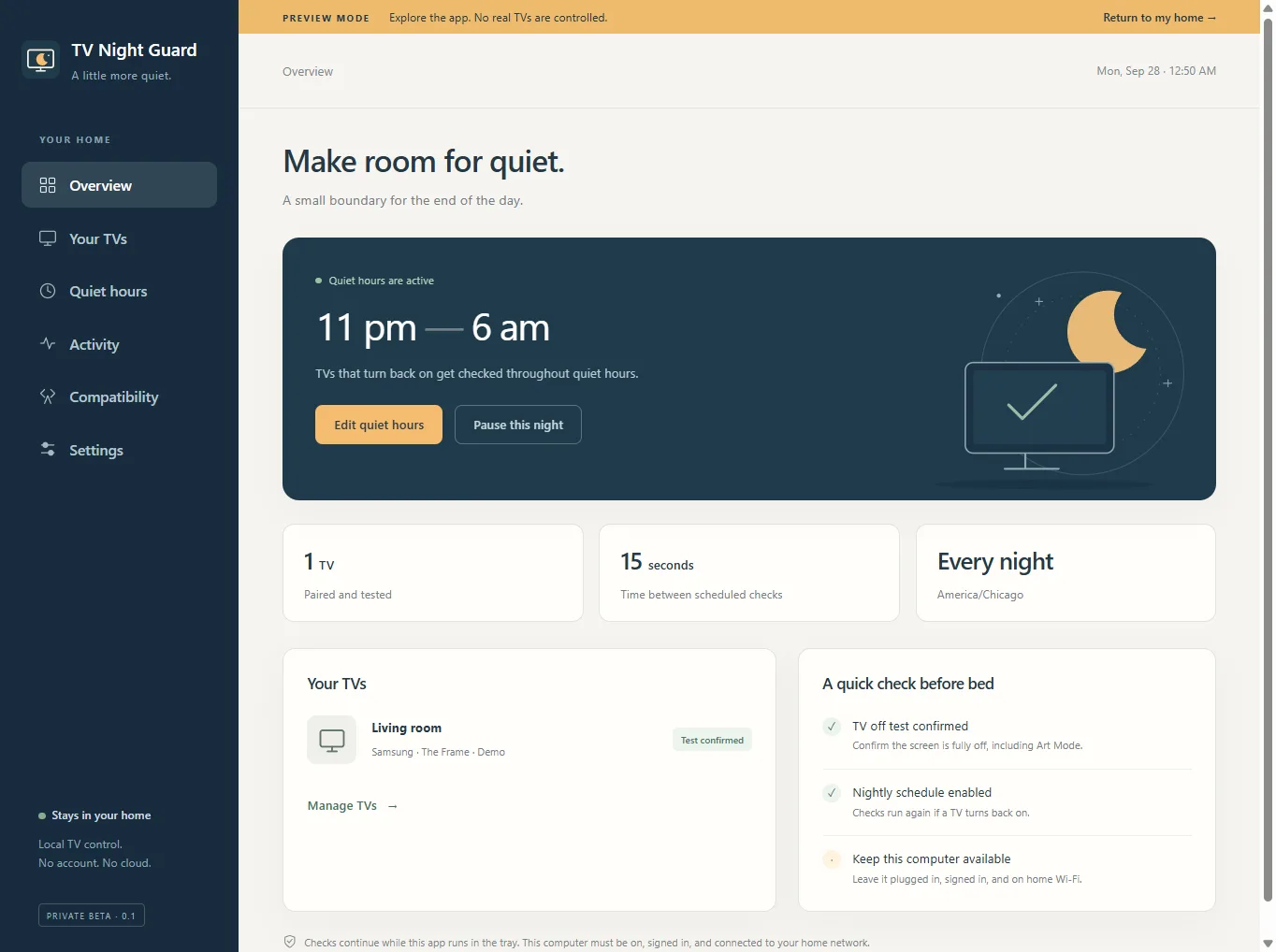
Choose when TV time ends. TV Night Guard checks compatible TVs throughout the night and sends an off command if they turn back on.
Runs on a computer that stays on and connected to your home network.
Beta.4 Windows portable and Linux testing packages available. Windows installer and Mac pending. Native GUI and hardware sleep/wake unverified. Expires October 28, 2026 at 08:40:28.369 UTC—30 days after build, not install. See platform progress.
How it works
Three steps, then bedtime.
Setup takes a few minutes per TV. The off test matters most: it is how you know the guard will actually work on your set.
- 01
Pair your TV
Connect your computer and TV to the same home network, then follow the pairing instructions.
- 02
Confirm the off test
Check that the TV turns fully off. For Samsung The Frame, confirm that Art Mode stops too.
- 03
Choose your quiet hours
Set the nights and times, enable the guard, and leave the computer available.
Everyday details
Small, steady, and easy to live with.
TV Night Guard does one job. It keeps that job predictable, so the end of TV time is something you set once rather than negotiate every night.
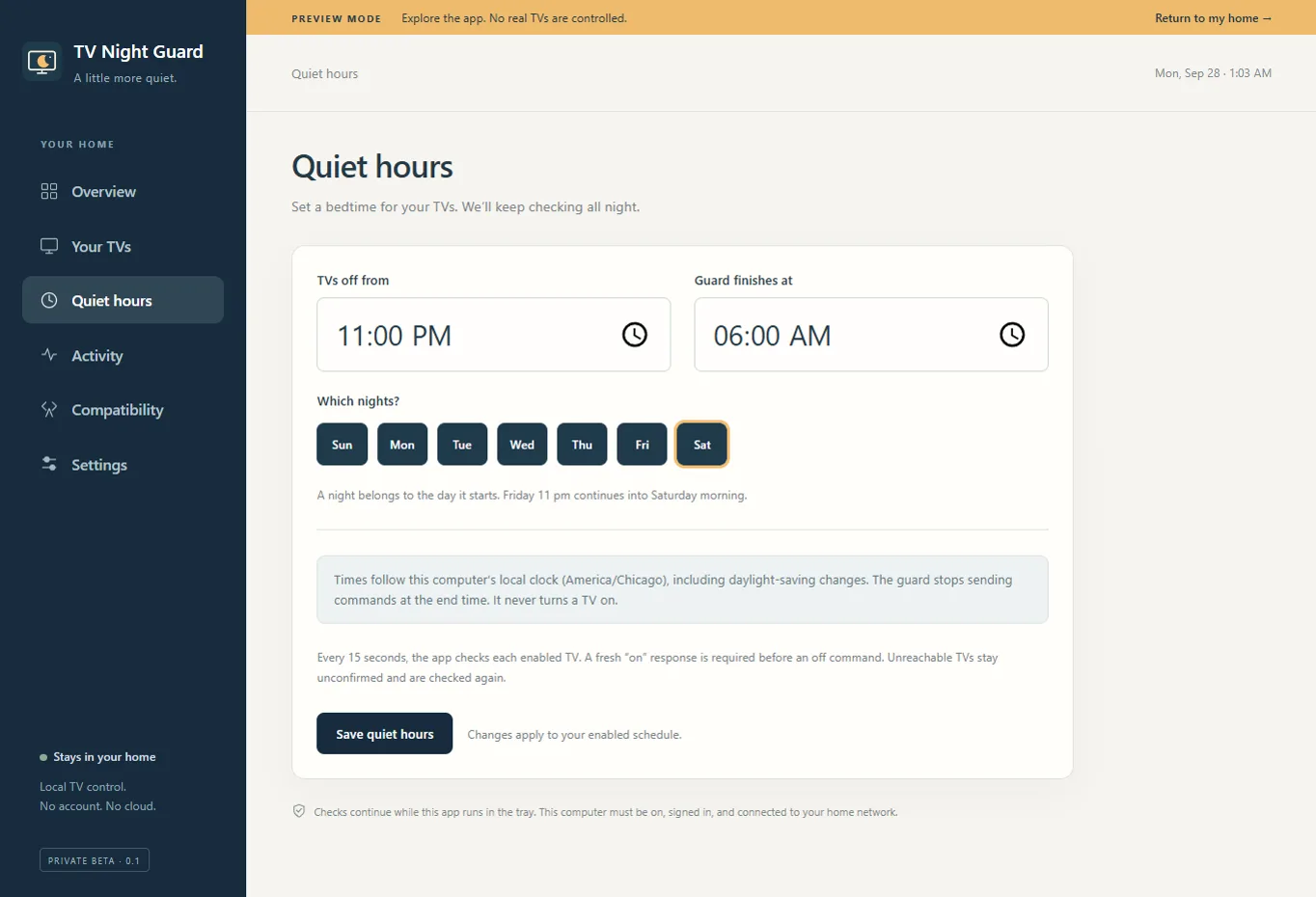
Checks keep going all night
During quiet hours the app looks in on each enabled TV about every 15 seconds. If one reports it is on, it sends an off command. Timing depends on your network and the TV.
One schedule, several TVs
The living room and the playroom can follow the same household schedule. Turn any single TV on or off in the guard.
Pause for a night
Movie night or a sick day? Pause the current or next quiet-hours window without changing your schedule.
Status and activity, on your computer
See which TVs are paired, when they were checked, and what happened. It all stays local.
No new account
No sign-up, subscription, or vendor-cloud login. The app talks to your TV directly on your network.
Look around first
A sample home lets you explore every screen before you pair a real TV. Nothing is controlled in preview mode.
TV compatibility
Check your TV before you download.
Compatibility depends on the model, firmware, and TV settings. A brand name alone does not guarantee support.
| Platform | Current status |
|---|---|
| Samsung Tizen / The Frame | IntegratedIntegrated in the beta; each TV requires an off test |
| LG webOS | ExperimentalExperimental; hardware testers needed |
| Sony BRAVIA with IP Control | ExperimentalExperimental; hardware testers needed |
| Vizio SmartCast | ExperimentalExperimental; hardware testers needed |
| Roku | Not supportedNot supported in this beta |
| Generic Google/Android TV and Fire TV | Not supportedNot supported in this beta |
The original prototype powered off a 2021 Samsung The Frame. That is one TV, not proof that every Samsung model or this beta build works. TCL and Hisense are not listed because their TVs run different operating systems.
What the computer needs
The guard is only as awake as the computer.
TV Night Guard runs on a computer in your home. Beta.4 testing downloads are available for Windows portable and Linux; Windows installer and Mac DMG remain pending. It is worth knowing how that works before you download.
Plugged in, signed in, on home Wi-Fi or Ethernet, and the app running in the tray.
- 01
Stays on, signed in, and connected
The computer has to be powered on, signed in, on your home network, and running the app during quiet hours.
- 02
Closing the window is fine
The app keeps running in the system tray. Quitting it from the tray stops checks.
- 03
Interruptions pause the guard
If the app is quit or the computer loses its connection, checks stop until it is back.
- 04
Sleep settings help, within limits
Optional settings can prevent normal idle sleep and request a wake timer. Both depend on your computer and OS settings. The app cannot start a computer that is powered off.
- 05
Laptops need a little care
Closing the lid or choosing Sleep may still suspend a laptop. A plugged-in desktop or a laptop left open works best.
Privacy
TV control that stays in your home.
Local control
The app talks to your TVs directly on your home network. No vendor cloud sits in the middle.
Encrypted pairing credentials
Pairing tokens and keys use operating-system credential protection. Linux needs an available secure keyring; insecure plaintext storage is rejected.
Nothing about what you watch
No viewing history, advertising, analytics, or automatic diagnostic uploads. A diagnostic file is exported only when you choose to, and it leaves out TV names, IP addresses, credentials, and activity text.
This website is separate from the app. If you send feedback here, we store what you submit, plus an email address only if you give one, in a private hosted database. Our hosting provider’s request logs may include IP addresses and browser details. No marketing or analytics tools are installed.
Public beta · Free during testing
Help us test it in more homes.
Help us test TV Night Guard in more homes. Try it with your TV and tell us what worked, what failed, and what would make setup easier.
Which TVs can I try?
Samsung Tizen TVs, including The Frame, are integrated in this beta. LG webOS, Sony BRAVIA with IP Control, and Vizio SmartCast are experimental and need hardware testers. Roku, generic Google/Android TV, and Fire TV are not supported in this beta.
Compatibility depends on the model, firmware, and TV settings. A brand name alone does not guarantee support.
Does my computer have to stay on?
Yes. The computer must be powered on, signed in, connected to your home network, and running the app during quiet hours. Optional settings can prevent normal idle sleep and request a native wake timer, but they depend on your computer. Native GUI and hardware sleep/wake testing remain unverified for these testing packages. Closing a laptop lid or choosing Sleep may still suspend it.
What happens if someone turns the TV back on?
During quiet hours the app checks enabled TVs approximately every 15 seconds. If a compatible TV reports that it is on, the app sends an off command. Checks continue throughout the night. Exact timing depends on your network and how the TV responds.
Does the app turn my TV on in the morning?
No. When quiet hours end, checking stops. The app never automatically turns a TV on.
Does it fully turn off Samsung The Frame’s Art Mode?
That is what the required off test is for. After pairing, the app asks you to confirm that the screen goes fully dark and Art Mode stops too. The original prototype did this on a 2021 The Frame, but models and firmware differ, so confirm it on your own TV.
Do I need SmartThings or a Samsung account?
No. TV control happens locally on your home network. The app needs no account, subscription, vendor-cloud login, or Samsung Windows software.
A household convenience tool. It is not tamper-resistant: anyone with access to the computer can pause or quit it.